Chapter 5: Setting up ticktrace
In this chapter we install the toolchain, clone ticktrace, and build the
default blinky.uf2. By the end you'll be one drag-and-drop away from
a running program.
What you'll install
Three things:
- The GNU ARM embedded toolchain, the assembler (
arm-none-eabi-as), linker (arm-none-eabi-ld), and a few helpers likeobjcopy. - Python 3 and a couple of Python libraries, used by the test harness and the UF2 packer.
- The ticktrace source tree itself.
You do not need GCC or any C compiler. ticktrace is pure assembly;
the C compiler in binutils-arm-none-eabi is not used.
Linux (Debian / Ubuntu / Raspberry Pi OS)
$ sudo apt update
$ sudo apt install binutils-arm-none-eabi python3 python3-venv git
That's the full host-side setup. On other distributions, install the
equivalent packages, Fedora has arm-none-eabi-binutils-cs, Arch has
arm-none-eabi-binutils, and so on.
macOS
$ brew tap ArmMbed/homebrew-formulae
$ brew install arm-none-eabi-gcc python3 git
(Yes, the package is named arm-none-eabi-gcc, but it includes the
binutils we actually need.)
Windows
Use WSL2 and follow the Linux instructions inside it. Native Windows toolchains exist but are not what ticktrace is tested against.
Verifying the toolchain
After installing, you should be able to run:
$ arm-none-eabi-as --version
GNU assembler (...) 2.40
...
$ arm-none-eabi-ld --version
GNU ld (...) 2.40
...
$ python3 --version
Python 3.11.x
If any of those error out, fix that before continuing, nothing later will work.
Cloning ticktrace
$ git clone https://github.com/amken3d/rp-asm.git
$ cd ticktrace
Take a moment to look around:
$ ls
Makefile  README.md  book/      c_apps/    c_bridge/
docs/     examples/  include/   link/      rust_apps/
rust_bridge/  src/   tests/     tools/
The directories you'll care about most as a beginner:
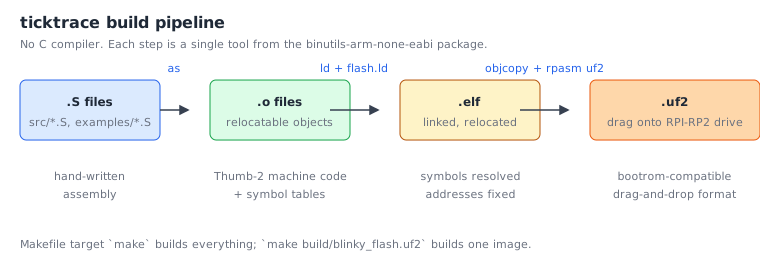
src/, the driver implementations, one.Sfile per peripheral.examples/, short demo programs. We'll be making more of these.include/, the register/bitfield definitions for every peripheral.link/, linker scripts.flash.ldlays your program out at the XIP flash window (0x10000000);sram.ldlays it out at SRAM (0x20000000). Both work on hardware.tools/bin/rpasm, the in-tree Go CLI built fromtools/cmd/rpasm/. Itsuf2 packsubcommand packs a raw binary into the UF2 format the bootrom expects;mkmanifestandmkfirmwarebuild the bootloader chain. (The oldertools/uf2.pyis still in the tree as a parity reference but the Go tool is the canonical one going forward.)
Installing the Python dependencies
ticktrace uses a virtualenv to keep its test dependencies out of your system Python. The Makefile has a one-shot target for this:
$ make pydeps
This creates .venv/ and installs the test harness libraries
(unicorn, pyelftools, pytest). It only needs to run once.
Your first build
Now build the default firmware:
$ make
You should see a stream of arm-none-eabi-as and arm-none-eabi-ld
invocations, ending in something like:
PACK build/blinky.uf2
Look at the result:
$ ls -lh build/blinky.uf2
-rw-r--r-- 1 you you 2.1K ... build/blinky.uf2
That's a complete program for the RP2350: clock-tree bring-up, GPIO, UART, the banner, and the LED toggle loop, packaged in 2 KB. Most of that is UF2 overhead, the underlying program is only 728 bytes of machine code.
This blinky.uf2 is the SRAM variant: the bootrom loads it
into SRAM at 0x20000000 and runs it from there. It's also what the
emulation test tiers (Unicorn, QEMU, Renode) consume.
For firmware that survives a power cycle, build the flash
variant, which goes into XIP flash at 0x10000000:
$ make build/blinky_flash.uf2
Both variants boot on real hardware. The packer picks the right UF2 family ID automatically from the load address.
Running it in emulation (optional)
You don't strictly need a Pico 2 to follow this book. ticktrace's test harness runs every driver under Unicorn (a CPU emulator) and the public examples under QEMU. To smoke-test your install:
$ make test
You should see hundreds of passing tests. If anything fails, that's worth investigating before proceeding, the tests catch most toolchain mismatches.
Running it on hardware
Plug your Pico 2 in while holding the BOOTSEL button. It will
mount as a USB Mass Storage device named RPI-RP2. Drag either
build/blinky.uf2 (SRAM, lost on power loss) or
build/blinky_flash.uf2 (XIP flash, persistent) onto it.
The Pico 2 will:
- Accept the file
- Reboot
- Print
ticktrace M2 - clk_sys = 150 MHzover UART0 TX (GP0) - Blink its onboard green LED at roughly 2 Hz
To see the UART output, connect a USB-to-serial adapter:
| Pico 2 pin | USB-serial pin |
|---|---|
| GP0 (UART0 TX) | RX |
| GND | GND |
Then open a serial terminal at 115200 8N1. On Linux:
$ sudo apt install minicom
$ minicom -D /dev/ttyUSB0 -b 115200
…or screen /dev/ttyUSB0 115200, or picocom, or whatever you like.
Order matters. The banner is printed once, in the first ~100 ms after
_reset. If you flash first and then open the terminal, the banner has already gone by, and you'll see the LED blinking but no text. Either:
Open the serial terminal first, then drag the UF2 onto
RPI-RP2(the board reboots into the new image after the drive ejects, and minicom catches the banner), orWith the terminal already open, tap the on-board RUN/RESET pin on the Pico 2; the board reboots and re-prints the banner.
Later chapters' examples that talk over USB-CDC have the same race; chapter 10 shows a banner-loop pattern that survives a late-attaching host.
If you don't have a USB-serial adapter, several examples use the Pico's built-in USB controller as a USB-CDC serial device, those work on nothing but the original USB-C cable. We'll get to those in chapter 10.
What just happened?
You built and ran a piece of bare-metal firmware. The chip booted from the bootrom, jumped into the ticktrace reset handler, brought up two PLLs and the clock tree, configured a UART, sent some bytes, and started toggling a GPIO pin. All in 728 bytes of code.
Exercises
-
Inspect the binary. Run
arm-none-eabi-objdump -d build/blinky.elf | lessand find the disassembly ofmain. How many instructions is it? -
Try the size tool. Run
arm-none-eabi-size build/blinky.elf. What is the.textsize in bytes? What about.dataand.bss? -
Find an example by size. Run
make bench-sizes 2>/dev/null || ls -lh build/*_flash.uf2 | sort -k5 -h. Which UF2 image is the smallest? Which is the largest? Speculate why. -
Smoke-test without hardware. Run
make test-alland watch which tiers pass. If T3 (Renode) is skipped because Renode isn't installed, that's fine, T1 and T2 alone exercise every public driver function.
In the next chapter we'll read the blinky code, line by line, and understand every byte.
← Chapter 4: The Cortex-M33 and Thumb-2 · Table of contents · Chapter 6: Your first program →